
Business Email Compromise
A Business Email Compromise (BEC) is a type of cyber attack where the attacker gains access to a business email account and uses it to commit fraud or other malicious activities. The primary goal of a BEC is often financial gain, and the attackers typically employ social engineering techniques to deceive employees into taking actions that benefit the attacker.
Microsoft 365’s Exchange Online is a prime target for threat actors due to its widespread use in the corporate world. Generally speaking, the attack campaign is relatively straight forward in that the actor, after harvesting the mailbox, may employ the use of inbox rules to conceal their activity, register rogue applications, or craft persuasive email messages in an attempt defraud the organization.
However, what is often overlooked is the possibility that a hacker can access another mailbox without having to know the password or satisfying a multi-factor authentication requirement. This scenario comes to fruition by way of Microsoft 365’s Delegate Access feature which enables another user to access and manage your mailbox on your behalf. Therefore, facilitating the ability to laterally move from mailbox to mailbox with ease.
This article takes a deep dive into the intricacies of delegated access and examines how a hacker can exploit this feature for malicious purposes. To conclude, we will explore the log sources and artifacts that can be referenced to construct a timeline of events from an investigative perspective.
What is Delegated Access?
With reference to below, there are three different types of delegate permissions that can be assigned. In our lab environment, the user ‘GradyA’ has full access to the mailbox of ‘Adele Vance’.

In terms of accessing the mailbox, the user must explicitly add the email account via Microsoft Outlook or Outlook on the Web as illustrated in the example below. In other words, delegated mailboxes are not automatically pushed to your account unless configured.

The view from a hacker’s perspective
In the event that the mailbox associated with ‘Grady Archie’ has been compromised, the threat actor could technically access the mailbox of ‘Adele Vance’ without the need to authenticate into her account. However, the actor must know beforehand that the mailbox is accessible in the first place. This is not an impossible task given that the hacker can already view the emails of ‘Grady Archie’. For instance, the actor might stumble upon an email ticket containing details regarding delegate access.
Let’s assume that the actor is aware that they can access the mailbox of ‘Adele Vance’, what can they do after connecting to the mailbox? With full access permission, one can send emails on behalf of the mailbox owner, delete or edit messages, and download any messages including attachments. In addition, what’s interesting is that the actor also has the option to create and configure inbox rules.
As demonstrated below, the hacker successfully creates an inbox rule entitled ‘Redirect all incoming emails’. Despite only compromising the account of ‘Grady Archie’, delegated access allows the actor to connect to the mailbox of ‘Adele Vance’ and create a malicious mailbox rule. The rule in itself redirects any emails delivered to her mailbox to the actor’s email account.

To verify this, we can connect to Exchange Online via PowerShell and query for the inbox rule using an administrator account. Evidently, the rule is active on her mailbox.
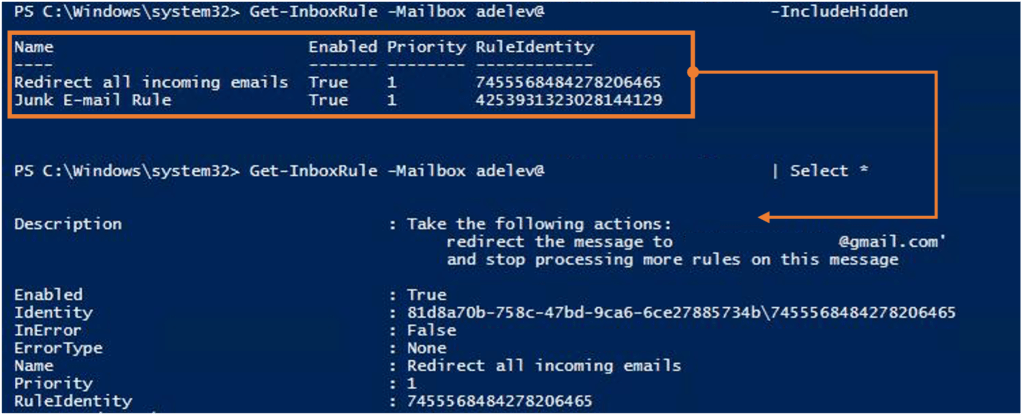
From a risk standpoint, this can be seen as a form of data exfiltration and potentially a breach of privacy depending on the type of data that resides in the mailbox. For instance, the mailbox may contain sensitive data such as personally identifiable information or company secrets.
Investigating the matter
As investigators, we are often tasked with picking up the pieces left behind by a hacker to understand as best we can what had occurred. Thankfully, Microsoft 365 has a verbose set of logs that can help us collect those pieces to develop a timeline of events.
Admin Audit Log
System administrators may use PowerShell to manage and maintain your Exchange Online tenant. For example, an administrator may use the ‘Get-Mailbox‘ cmdlet to determine how much storage has been used for a given mailbox account. These actions are recorded as entries in the Admin Audit Log. The log provides you with information about what cmdlet was run, which parameters were used, who ran the cmdlet, and what objects were affected. By default, these logs are retained for ninety days.
In addition, the log also records when an end user has created, modified, or deleted an inbox rule. As such, let’s connect to the Exchange Online instance via PowerShell and export the logs for offline analysis. In the command below, the cmdlet ‘Search-AdminAuditLog‘ is specified along with the timeframe of interest. The results are then piped and exported into a file located on the desktop.

After running the command and filtering on the events of interest, the following is returned. Before digesting the results further, let’s break down each column heading.
- RunDate – time of the event or when the cmdlet was executed.
- ObjectModified – the object that the cmdlet was ran against.
- Cmdlet – the cmdlet that was used.
- Caller – the user (mailbox owner, delegate, or administrator) that ran the cmdlet.
In reviewing the results, it is evident that on January 24, 2024, the actor created an inbox rule entitled ‘Redirect all incoming emails‘. Recall, the inbox rule was created via Outlook on the Web and now we see it recorded in the form of the cmdlet called ‘New-InboxRule‘.

What’s interesting is that the ‘Caller‘ does not explicitly state who created the mailbox rule. However, it does suggest that this was done by a delegate as per the ‘on behalf of’. The randomized characters observed are unique identifiers that are often associated with a user object. To differentiate between the two and ascertain who is who, we can use the ‘Get-Mailbox’ cmdlet as per below to obtain the identifier for each user.
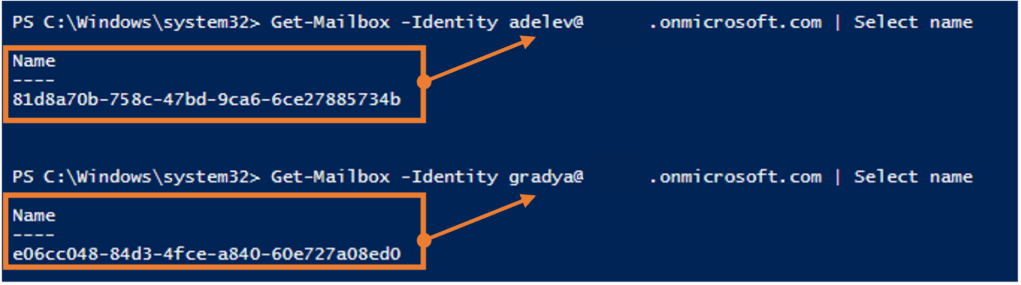
When comparing the identifiers returned with the log record, we can clearly see that the user ‘GradyA’ created an inbox rule on behalf of ‘AdeleV’. In other words, we have discovered an integral artifact as part of our investigation. This event in itself contains several other metadata that could be useful to our investigation such the associated IP address (‘ClientIP‘) and the session token (‘SessionId‘). For example, the session token value can be used to compile all the events associated with the actor in our logs.
Mailbox Audit Log
To determine what specific actions were taken on the mailbox such as whether or not the actor may have accessed or deleted an email on the delegated mailbox, we can consult the Mailbox Audit Log. This can be queried for the user of interest using the cmdlet ‘Search-MailboxAuditLog‘ and then subsequently specify that we are only interested in actions performed by a delegate by setting the ‘LogonTypes‘ parameter to ‘Delegate‘.

With the command executed and results returned, it can be observed that the actor, impersonating ‘Grady Archie’, has performed several operations against the mailbox of ‘Adele Vance’. Let’s break this down bit by bit by referring to the highlighted operation.
- LastAccessed – this tells us when the operation was performed. In this case, the event occurred on January 23, 2024.
- Operation – specifies the type of activity performed. A ‘HardDelete’ operation indicates that an email was deleted. Note, there are three phases of deletion when an email is deleted, but that is a topic for another day.
- ClientInfoString – records the user agent from which the activity originated from. In our highlighted example, the delete operation occurred on Outlook on the Web on a MacBook OS device.
- MailboxOwnerUPN – makes note of the owner of the mailbox where the delete operation was made against.
- LogonUserDisplay – records the user that performed the operation. In our scenario, this user turns out to be ‘Grady Archie’, the compromised account.
- SourceItemSubjectList – this is the object that was deleted. Recall, we came across this email in the section ‘What is Delegate Access?’.

Unified Audit Log
The Unified Audit Log is best described as an all inclusive resort that is in some ways, a one stop destination with all your amenities (and drinks) situated in one place. It captures a wide range of events across your Microsoft 365 tenant including Exchange, SharePoint, OneDrive, and Microsoft Teams activity. This is inclusive of the logs (Admin Audit Log and Mailbox Audit Log) we reviewed earlier. However, one thing to note is that by default this log is not enabled. Therefore, it is imperative that you check to ensure it has been enabled. Nonetheless, you can always consult the logs we reviewed as an alternative.
Wrapping up
Evidently, under certain scenarios a hacker can laterally move from one mailbox to the other without ever needing to know the password of the account. In addition, it is not only possible to view, edit, create, and delete emails in the mailbox, but also configure inbox rules for nefarious purposes. When responding to this type of attack, it is imperative that checks are conducted to determine if the compromised account has delegated access to other accounts. Following this, an analysis should follow to ascertain whether or not any suspicious activity occurred involving the delegate mailbox. Moreover, system administrators should perform audits on delegated accounts on a periodic basis. In doing so, the principle of least privilege is enforced.
Happy Hunting.
 Romel Ramkissoon